
At Teamie, we are continuously innovating to provide educators and learners with powerful and flexible tools that enhance teaching and learning effectiveness. We are excited to introduce our latest update – Arakan Forest Turtle (2.29). This latest release brings significant updates to AI capabilities, assessment controls, and multimedia support.
Furthermore, this release includes several enhancements aimed at improving how teachers and learners communicate within assessments. From richer feedback options to improved control over comment revisions, these enhancements strengthen the overall assessment experience across Teamie. Let’s dive into what’s new!
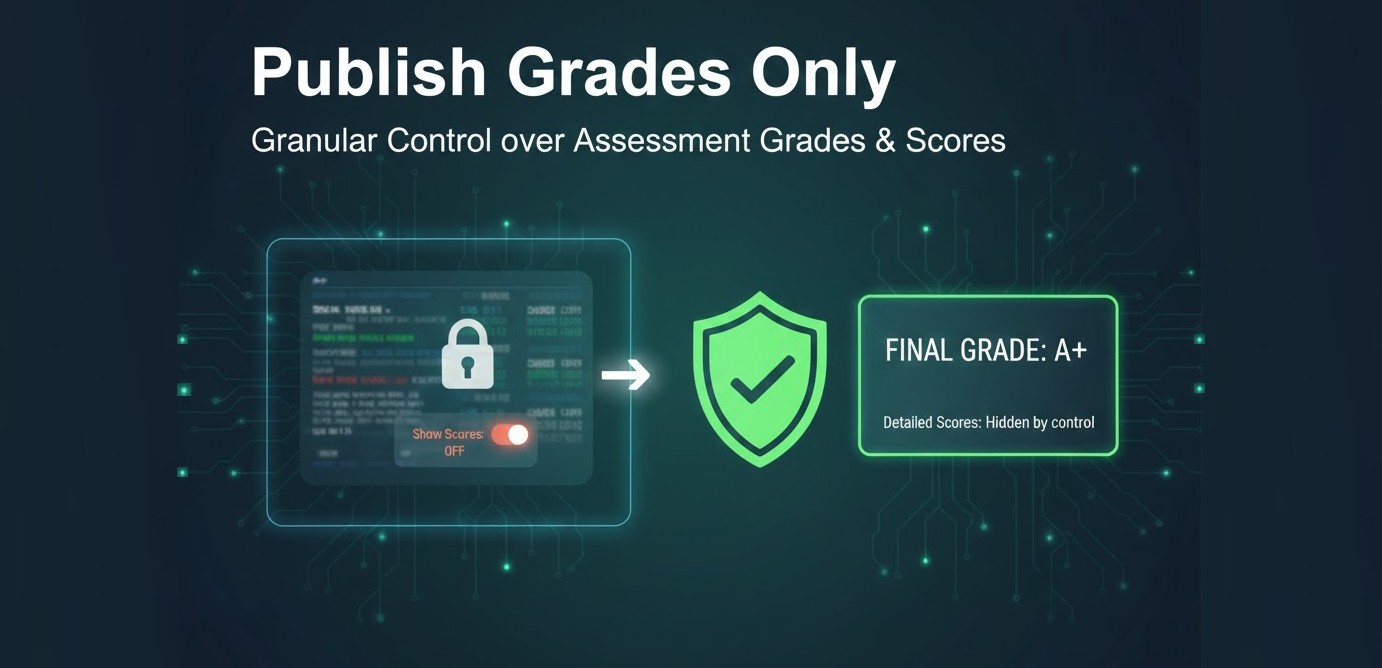
Teachers now have more control over how assessment results are displayed to learners. With the new “Publish grades only” option, teachers can choose to display only the grade (such as A, B, or Excellent) while keeping the actual score and corresponding rubric details hidden.
This enhancement is designed for situations where teachers want learners to focus on overall performance rather than the marks; promoting a more holistic view of achievement.
When this setting is enabled and grades are published:
This new setting is applied on a per-assessment basis:
This feature is immediately visible and available within the settings of all assessment types in Teamie.
Important Note on Visibility: The “Publish grades only” setting will only appear for an assessment if it meets the following criteria:
This update allows for a more flexible and strategic approach to releasing assessment feedback:
Tip: Use this option when you want to share overall results without disclosing the scores, ideal for formative or benchmark assessments.
We have introduced a new setting to give instructors and institutions more control over how a student’s final score and grade are calculated.
Currently, all scoring summative assessments automatically contribute to the final score calculation. With this enhancement, administrators and instructors can now enable a classroom-level setting that ensures only the scores from summative assessments that have been explicitly published will be included in the calculation of the final score and final grade.
What this means for you:
This functionality is available as a classroom-level setting called “Gradebook Calculation – Consider only published scores” which can be enabled by administrators.
To explore this feature: Check your classroom’s Gradebook Calculation Method settings to see if this option is active. Contact us if you’d like this enabled on your Teamie site.
Creating quizzes just got a lot faster and smarter! With Contextual AI Quiz Generation, teachers can now automatically generate quizzes directly from the lesson content using Teamie’s AI-powered assistant.
This feature transitions the system from generating questions using general parameters to producing highly contextual and targeted quizzes that align precisely with teaching objectives.
Key Outcomes and Progress:
This enhancement enables teachers to create richer, more relevant assessments more efficiently. Click here to learn more about this feature.
We’ve made it easier for teachers to manage grading for non-scoring offline tests. With this enhancement, teachers can now upload grades in bulk for offline assessments that use a grading scheme, without needing to assign numerical scores.
Previously, only scoring offline tests could be uploaded in bulk. This update allows teachers to grade learners with grade scales like A, B, or C, instead of numeric marks, streamlining the grading process. We now support the bulk upload of grades for the following offline tests via the import template:
What this means for you:
This makes offline test grading faster, clearer, and aligned with standard reporting needs.
Tip: Use this feature when grading offline activities where a qualitative grade is preferred over a numeric score, saving time and ensuring alignment with your grading policy.
To explore this feature: Create or edit an offline test, map a grading scheme, and ensure the ‘scoring’ checkbox is disabled. Then, look for the new ‘Upload Grades’ button in the View Records page.
We are improving the functionality of the Rubric / Criteria View to provide instructors with more relevant context and better organizational tools for assessments. Teachers can now see assessment deadlines directly in the Rubric view, making it easier to understand timelines while grading or reviewing assessments. This enhancement provides clearer context and helps teachers manage multiple assessments more efficiently.
Key enhancements include:
This makes it easier to prioritize assessments and manage grading workloads without switching views.
Tip: Enable sorting to immediately view assessments with the closest deadlines.
To explore this feature: Navigate to the Rubric View in your classroom and look for the new deadline information displayed under assessment titles, along with the new ‘Sort assessments by deadline’ checkbox for sorting.
We’ve streamlined the workflow for pushing units from planners and workspaces by allowing teachers and curriculum teams to configure all essential material settings before the push. This removes the need to repeatedly adjust publish dates, deadlines, and grading options separately in each classroom after materials are pushed.
This enhancement provides a unified, efficient way to prepare materials ahead of time, whether pushing to a single classroom or multiple classrooms at once.
Key Benefits of this Enhancement:
All settings applied here are pushed instantly and retained in each classroom, eliminating manual updates after pushing.
Tip: Use the built-in “Show only mine” filter while selecting classrooms to quickly narrow down the list to classes you’re part of, simplifying multi-class pushes.
To explore this feature: Select your classroom(s) when pushing a unit or material, then click Configure Settings to set everything upfront before confirming the push.
Furthermore, to improve clarity when reusing Workspaces and Unit Planners across academic years, the Pushed status will now only reflect content pushed to active classrooms. Previously, materials and sections appeared as “Pushed” even if they had been pushed only to archived classrooms from earlier academic years, making it difficult for teachers to understand where content was currently active.
We’ve introduced a set of improvements that make feedback on assessments more expressive, accurate, and user-friendly. These updates ensure teachers and learners can communicate more effectively across all assessment types.
We’ve expanded the video recording feature to assessment submission comments, allowing teachers and students to communicate feedback more effectively across all assessment types.
Building on our earlier update that introduced video recording in Teamie, users can now record and attach videos directly in comments within Assignments, Quizzes, Discussions, and Offline Tests. This makes feedback more personal, expressive, and engaging.
Two key benefits:
We have standardized the commenting experience so that you can now attach any file type (not just audio) to comments on submissions for Offline Tests and Discussions, aligning them with the functionality already available in Assignments and Quizzes. This ensures a unified, flexible commenting workflow across each assessment type.
Teachers and students can now directly record and attach videos within the comment section of any assessment attempt or grading view.
All comments, including those with video attachments, will be shown in both the assessment attempt viewers and the Student Gradebook, keeping the experience consistent and predictable.
Tip: Use video comments to personalize your feedback and explain complex ideas more clearly.
To explore this feature: When leaving a comment on any student submission, look for the attachment options that now include support for all files and the dedicated video recording option.
To make feedback more precise and flexible, users can now edit their own comments across all assessment submissions.
Previously, once a comment was posted in the Attempt Viewer or Evidence Viewer, it could not be modified. Now, the person who originally posted the comment can quickly make corrections or clarifications to their feedback.
Key benefits:
Once a comment is edited, the updated version will be immediately displayed in the list of comments, ensuring everyone sees the latest feedback.
Tip: Combine this with video comments for clear, polished, and highly personalized feedback.
To explore this feature: Simply navigate to any submission where you have left a comment and look for the edit option next to your comment text.
We understand the importance of formally acknowledging and validating a student’s portfolio work. We’ve introduced a new feature that allows teachers to officially approve a student’s Story to confirm that their work has been reviewed and acknowledged.
Previously, while students could share stories for feedback, there was no official way for teachers to mark them as approved. With this enhancement, teachers can now approve or unapprove stories, helping students know when their work has been seen and accepted.
Purpose and Benefits: This enhancement provides a clear and formal process for student work review within the Stories feature (e-Portfolios).
Tip: Use approvals to recognise high-quality work and clearly signal which submissions have been formally reviewed.
We have also added a notification preference for this workflow, allowing students to customize these notifications according to their requirements.
Ready to try it out? Contact us if you’d like this feature enabled for your Teamie site. Once configured, users with the correct permissions will see the new “Approve” button in each student’s Story.
To improve communication and ensure students stay informed about feedback on their work, we’ve introduced new email notification preferences related to comments on stories.
This ensures that learners don’t miss important feedback or discussions happening on their shared stories, helping promote better engagement and timely responses.
Students can now receive email updates when:
Customizable Preferences: This new preference option is visible under the Notification Preferences in the dashboard. Students can enable or disable these notifications based on their communication preferences.
Tip: Encourage learners to check their Notification Preferences to ensure they’re receiving important feedback updates.
To make it easier for teachers to manage learner data in the Mastery View, we’ve added a new Active/Inactive filter. This brings the Mastery View in line with other classroom gradebook views that already support filtering users by their membership status.
Filter Options:
This ensures consistency across gradebook views and helps you effortlessly switch between the required set of students.
To explore this feature: Open the Classroom Mastery View and set the new Active / Inactive filter to change the student data.
We have introduced a new configuration option that allows institutions to set a default objective level for the Classroom and Student Mastery and Standard Views, helping them save time and quickly focus on the most relevant level of mastery data.
Previously, the lowest level of objectives was always shown by default. With this enhancement, clients can now choose which level of the objective hierarchy (for example, strand, standard, or sub-standard) should load first whenever the mastery views are accessed.
Benefits:
This configuration applies across Classroom Mastery View, Student Mastery View, Classroom Standard View, and the Detailed View. Contact us to enable this for your institution.
Tip: Choose the level that aligns with your reporting needs for faster, more relevant insights.
We’ve enhanced the Attendance Summary Export feature to provide richer context and more useful information for classroom attendance reports.
Earlier, the Excel export for attendance summaries only included the student’s name and user identifier alongside their attendance data. We have now added the student’s user-level meta fields (data fields such as Department, Admission ID etc) to this export, placing them right next to the student names simplifying the post-export analysis and reporting workflows.
Benefits:
To explore this feature: Export Attendance Summary as usual; meta fields will now be included automatically in the generated Excel file.
To make it easier for teachers to push materials and sections to the correct classrooms, we’ve added a new option that lets users quickly filter the list to show only the classrooms they are part of.
Previously, when pushing content from unit planners or workspaces, teachers sometimes had to scroll through long lists of classrooms, many of which belonged to other teachers. This update streamlines that experience and helps users find their own classrooms faster.
We’ve addressed this by adding a new filter option:
This streamlines pushing content into multiple classrooms, especially in large institutions with extensive classrooms list.
Tip: Before pushing content, enable “Show only mine” to avoid selecting the incorrect classroom.
At Teamie, we’re committed to enhancing your mobile experience with features that simplify teaching and learning on the go. Our latest app updates – iOS 6.7 brings a host of new features and enhancements aimed at improving student mastery view and user post sharing experience. Let’s check out the details below.
We’ve enhanced our iOS app experience by migrating the Student Mastery View from webview to native view. This upgrade provides a more seamless and integrated experience for users tracking student progress on mobile devices.
The Student Mastery View is organized into several intuitive screens:
This upgrade improves speed, usability, and overall integration with the iOS platform.
This feature now matches the Android app capabilities and delivers a unified cross-platform experience. For detailed instructions on using the Student Mastery View, visit our Help Center guide.
We’ve brought two highly-requested posting capabilities, Scheduled Posts and Draft Posts, to the iOS app, making content creation on mobile more flexible and convenient for teachers and learners alike. These enhancements bring the iOS experience in line with what’s already available on our Android and web platforms.
Users can now schedule their thoughts or announcements directly from the iOS app. The scheduling option appears in the Add Attachment bottom sheet within the post settings.
Key highlights:
Drafting posts is now much simpler on iOS. If a user begins creating a post and navigates back, the app will prompt them to save it as a draft when there is unsaved content.
Key highlights:
These additions bring full parity with web and Android workflows, making content creation on the go more flexible and intuitive.
Tip: Use scheduled posts to plan ahead for classroom reminders, content releases, or announcements you want students to see at just the right time.
That’s it for this update! Stay tuned for more enhancements, and as always, thank you for being part of the Teamie community. See you next time! Till then stay healthy and stay collaborative.